How to Upgrade
Be sure your V1 Gen2® is powered on and connected to V1connection, the app.
What to do if you lose power during an upgrade.
What to do if you lose power during an upgrade.
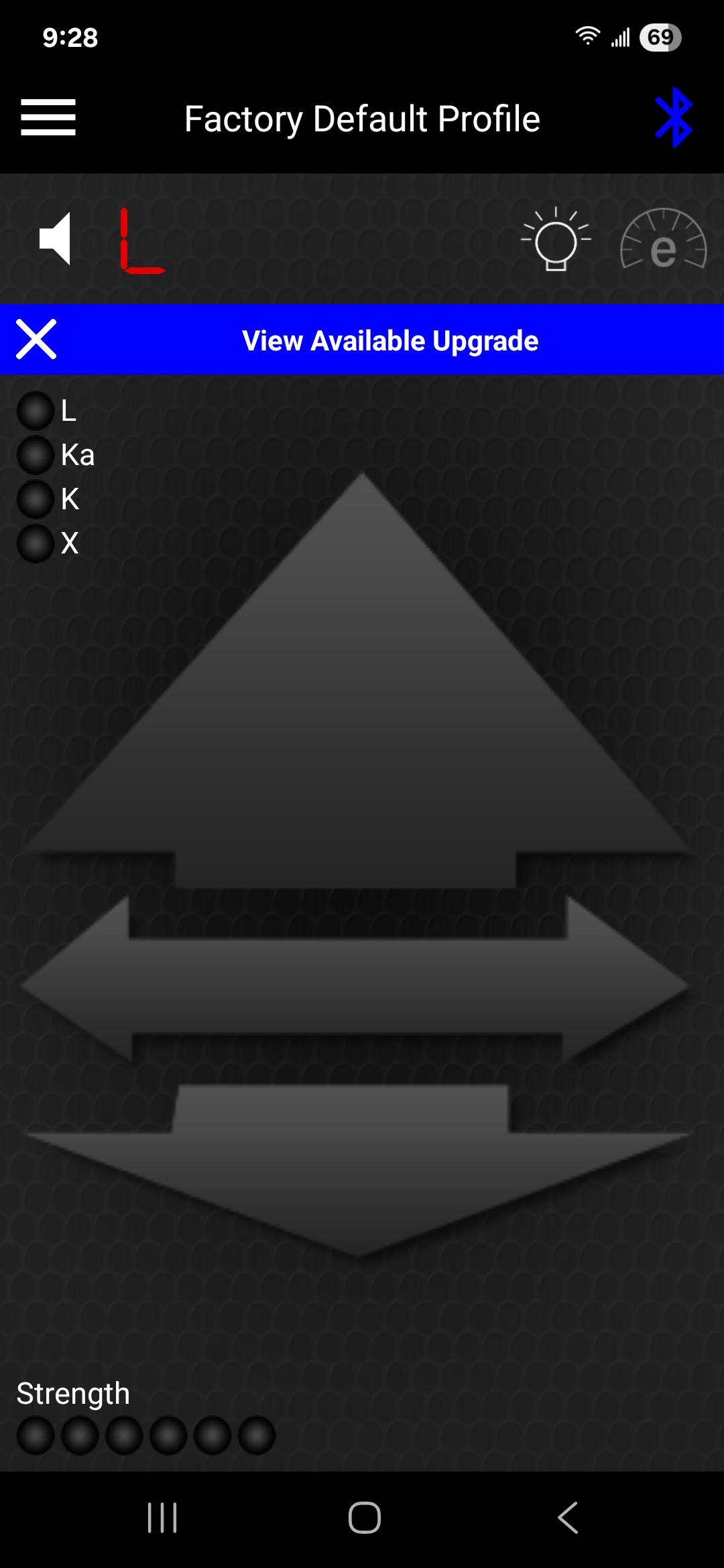
V1 Main screen
Upgrades Available.
action: tap X to dismiss.
action: tap banner anywhere else for Upgrades screen.
Upgrades Available.
action: tap X to dismiss.
action: tap banner anywhere else for Upgrades screen.
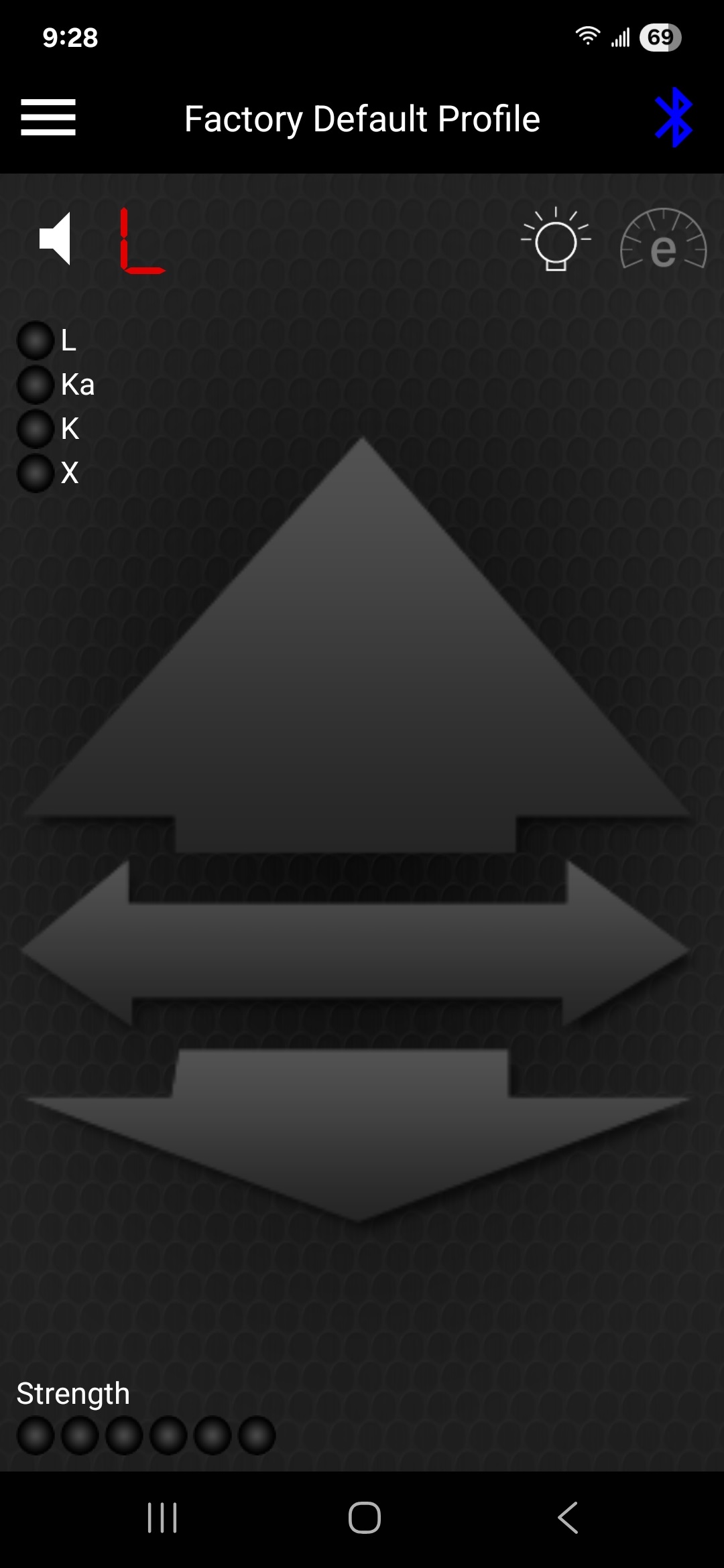
V1 Main screen
Upgrades Unavailable. If the automatic-upgrade-notice feature has been switched off, you can check manually for Upgrades.
action: tap settings icon
Upgrades Unavailable. If the automatic-upgrade-notice feature has been switched off, you can check manually for Upgrades.
action: tap settings icon
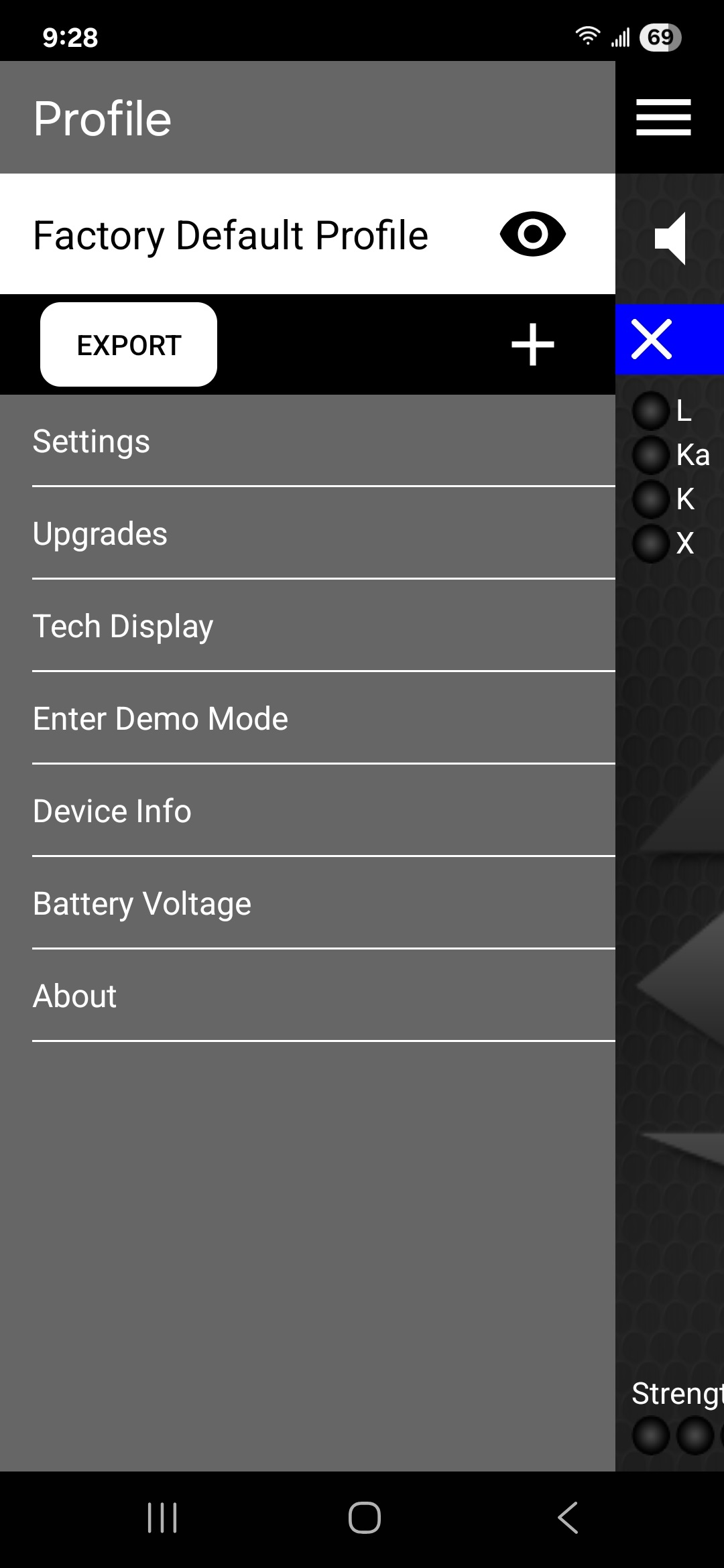
Settings screen
Get available upgrade or manually check for upgrades.
action: tap Upgrades text to open Upgrades screen.
Get available upgrade or manually check for upgrades.
action: tap Upgrades text to open Upgrades screen.
Upgrades screen
Test for Upgrades.
action: tap to check for upgrades.
Test for Upgrades.
action: tap
to check for upgrades.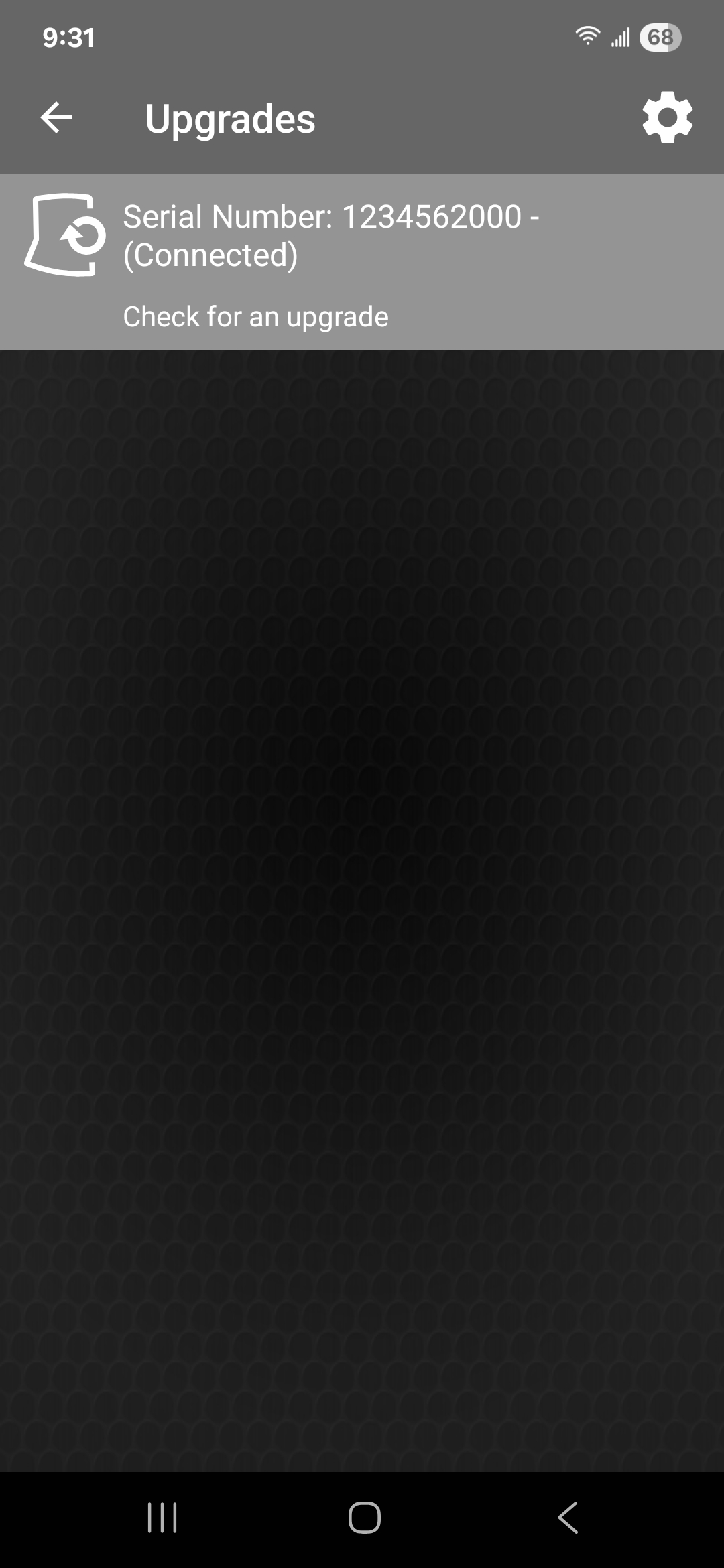
Upgrades screen
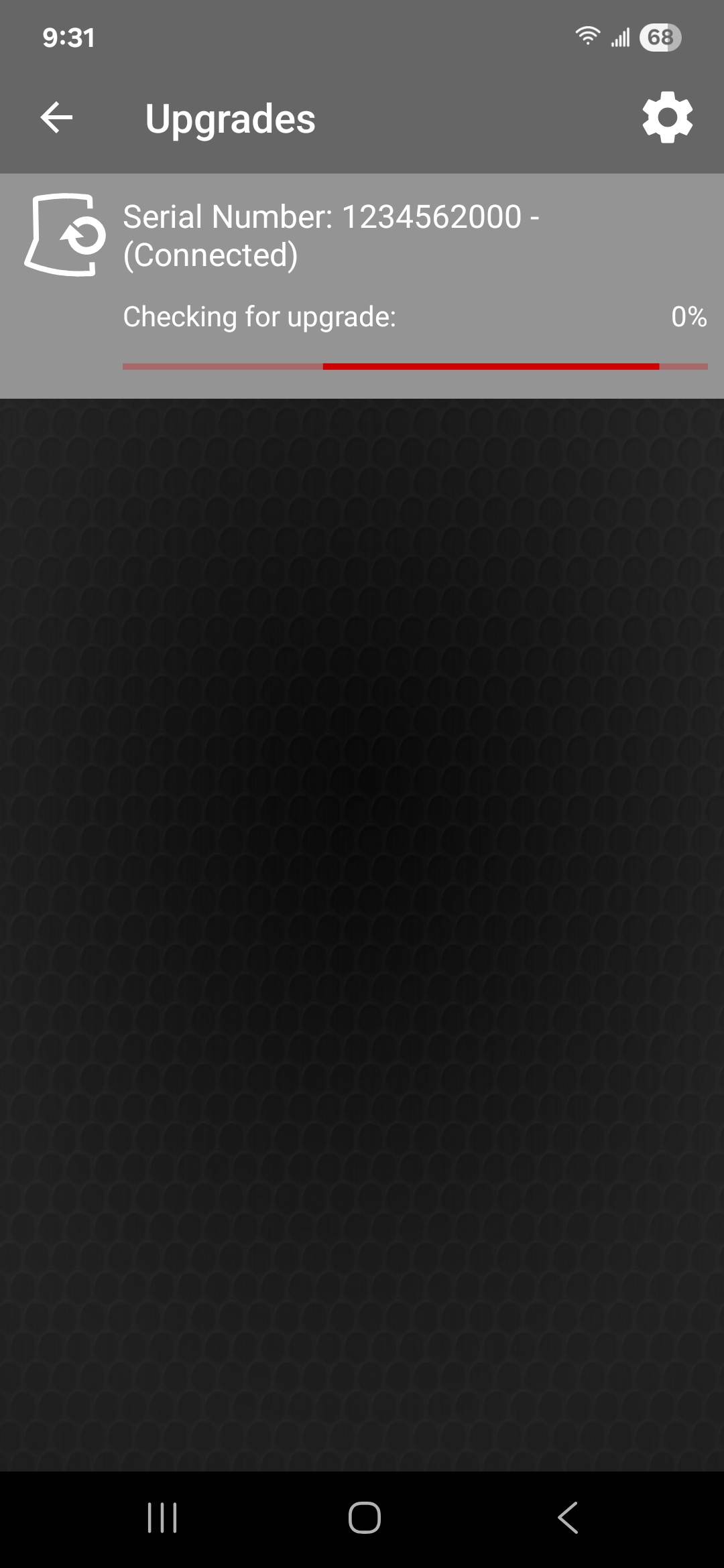
Checking for Upgrades.
action: (wait).
Checking for Upgrades.
action: (wait).
Upgrades screen
Download Upgrade/Get Upgrade info.
action: tap to download upgrade.
action: tap for upgrade information.
Download Upgrade/Get Upgrade info.
action: tap
to download upgrade.action: tap
for upgrade information.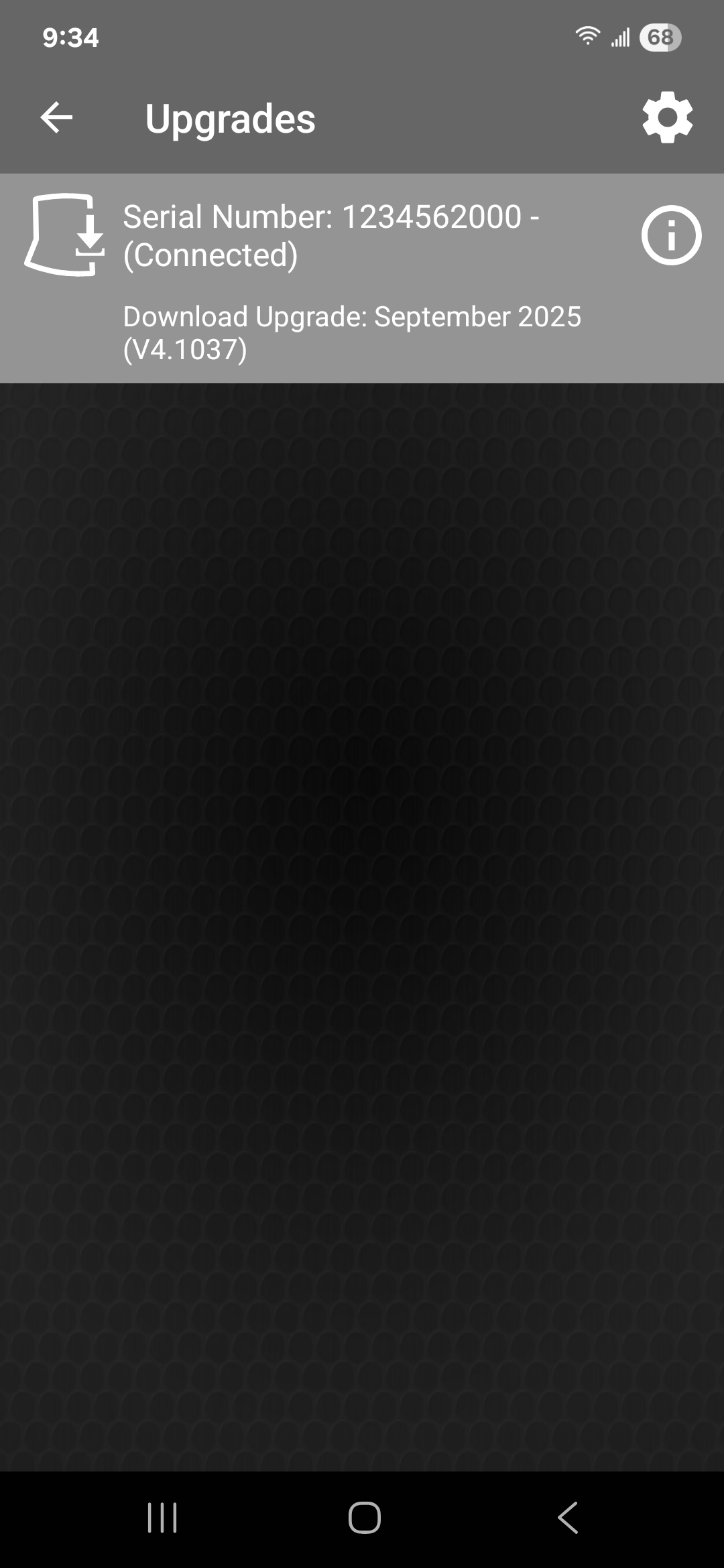
Upgrades screen
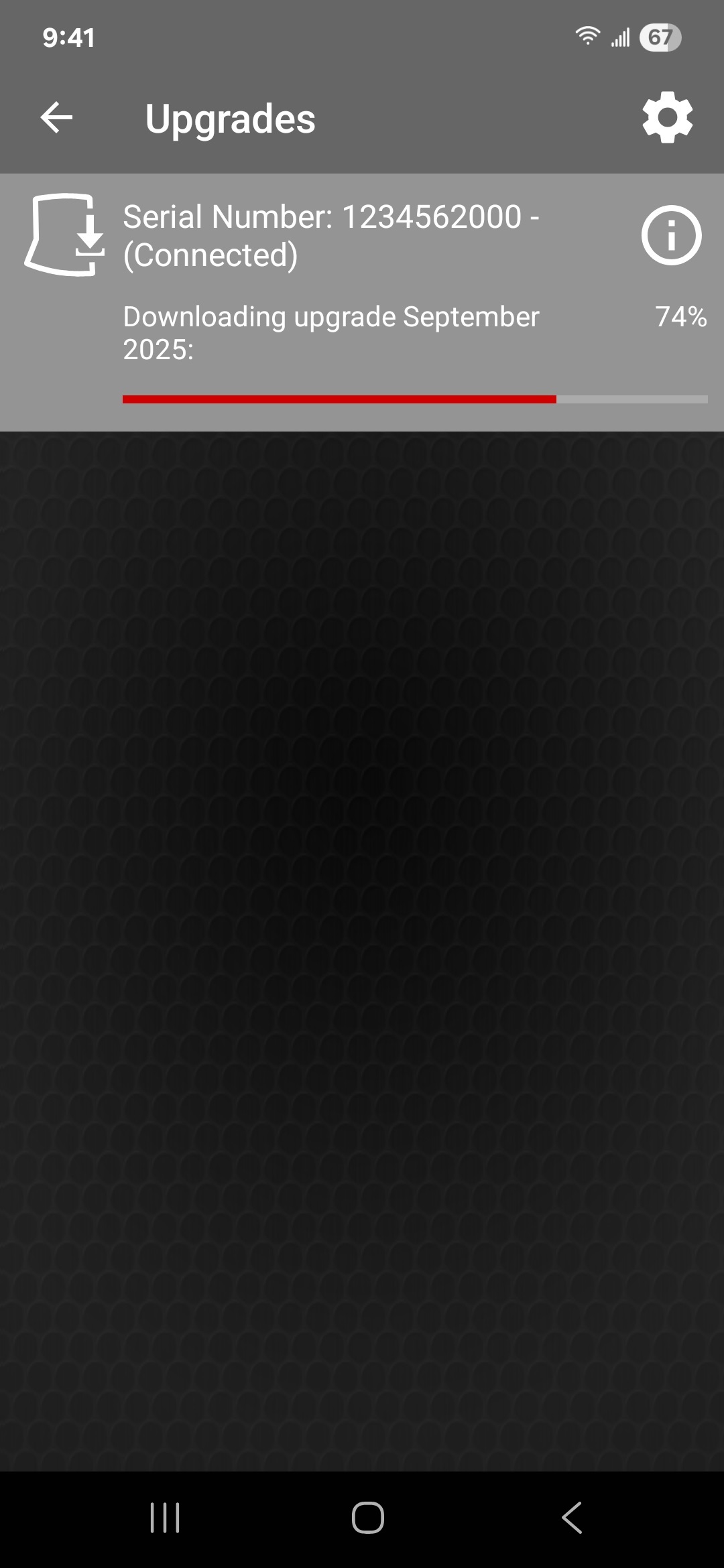
Downloading Upgrade.
action: (wait).
Downloading Upgrade.
action: (wait).
Upgrades screen
Install Upgrades.
action: tap to install upgrade.
action: tap for upgrade information.
Install Upgrades.
action: tap
to install upgrade.action: tap
for upgrade information.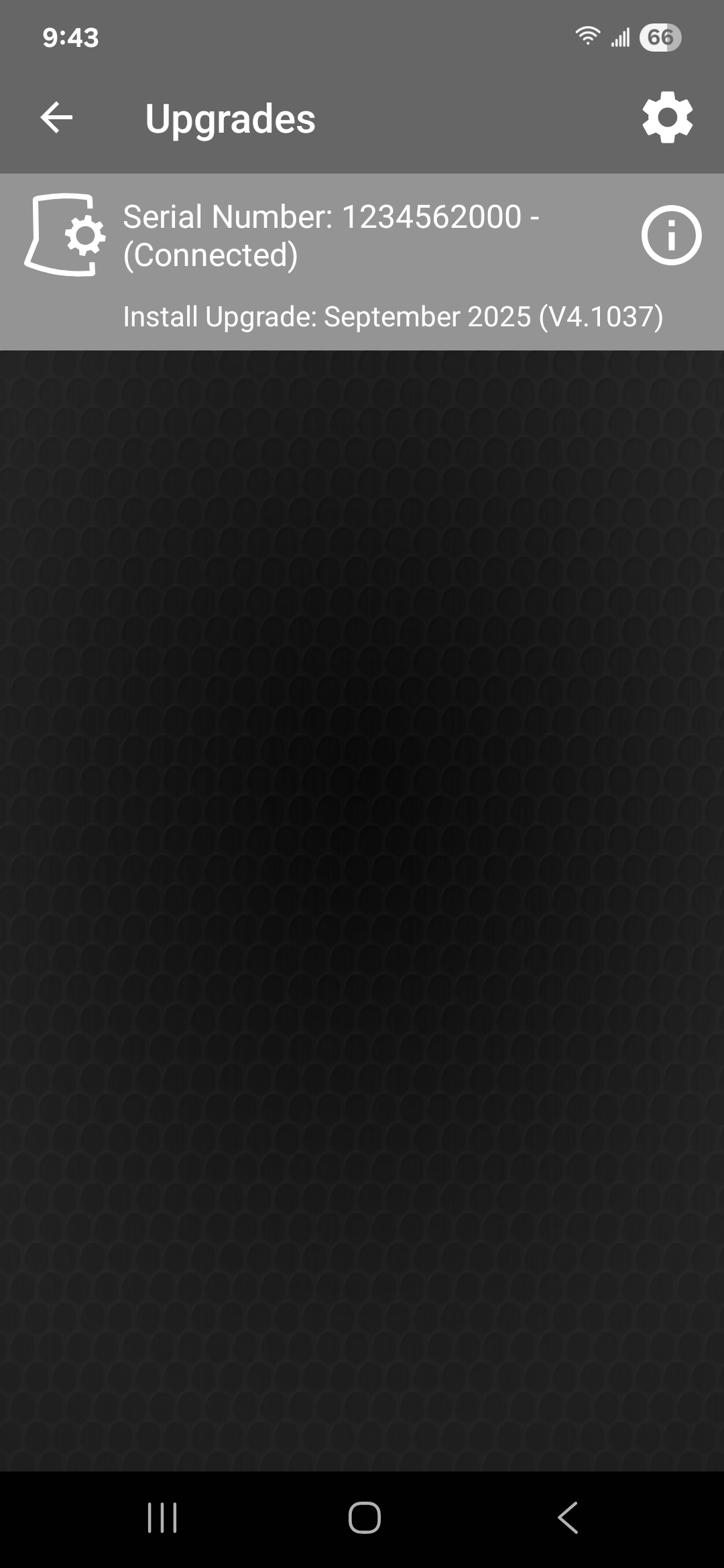
Upgrades screen
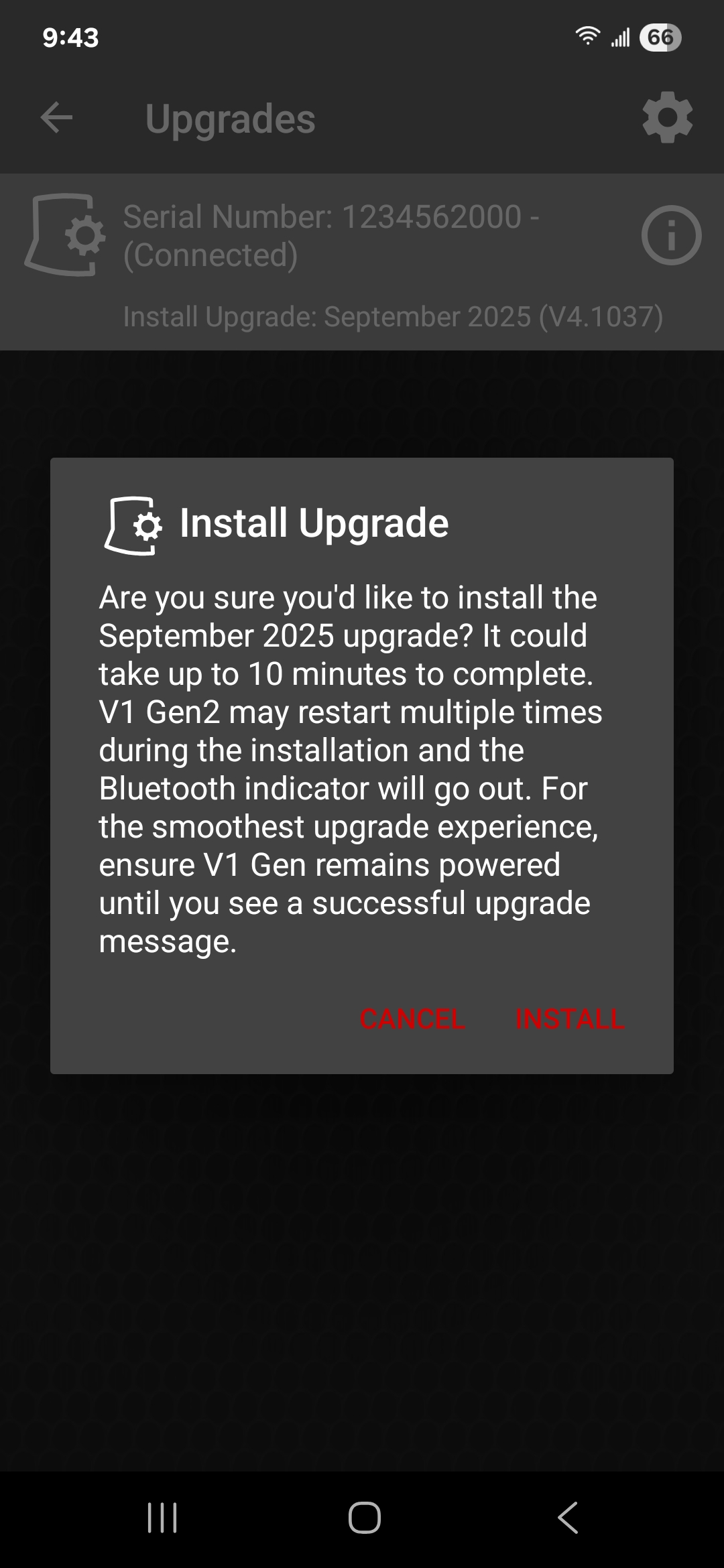
Acknowledge/Cancel Upgrade install.
action: tap CANCEL or INSTALL
Acknowledge/Cancel Upgrade install.
action: tap CANCEL or INSTALL
Upgrades screen
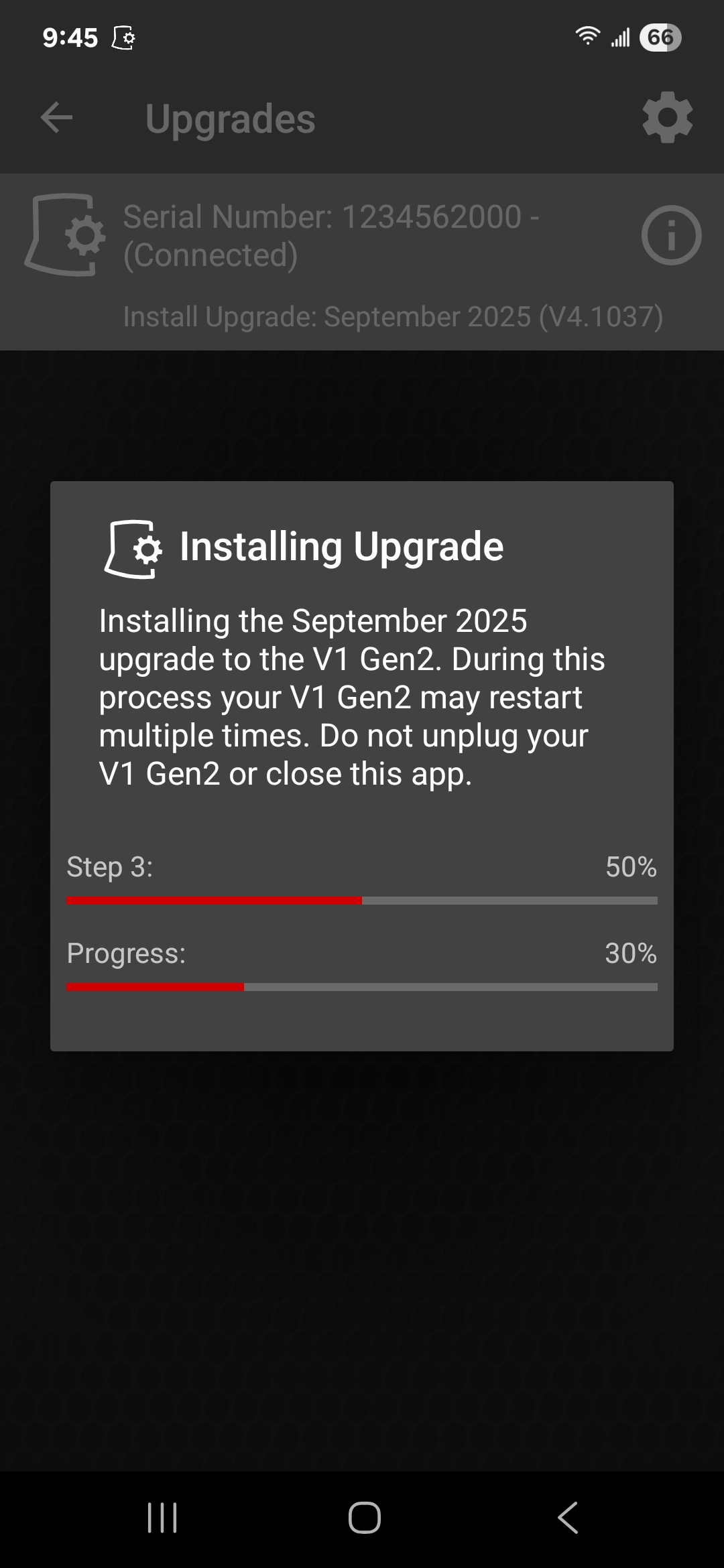
Installing Upgrade Progress.
action: wait.
Installing Upgrade Progress.
action: wait.
Upgrades screen
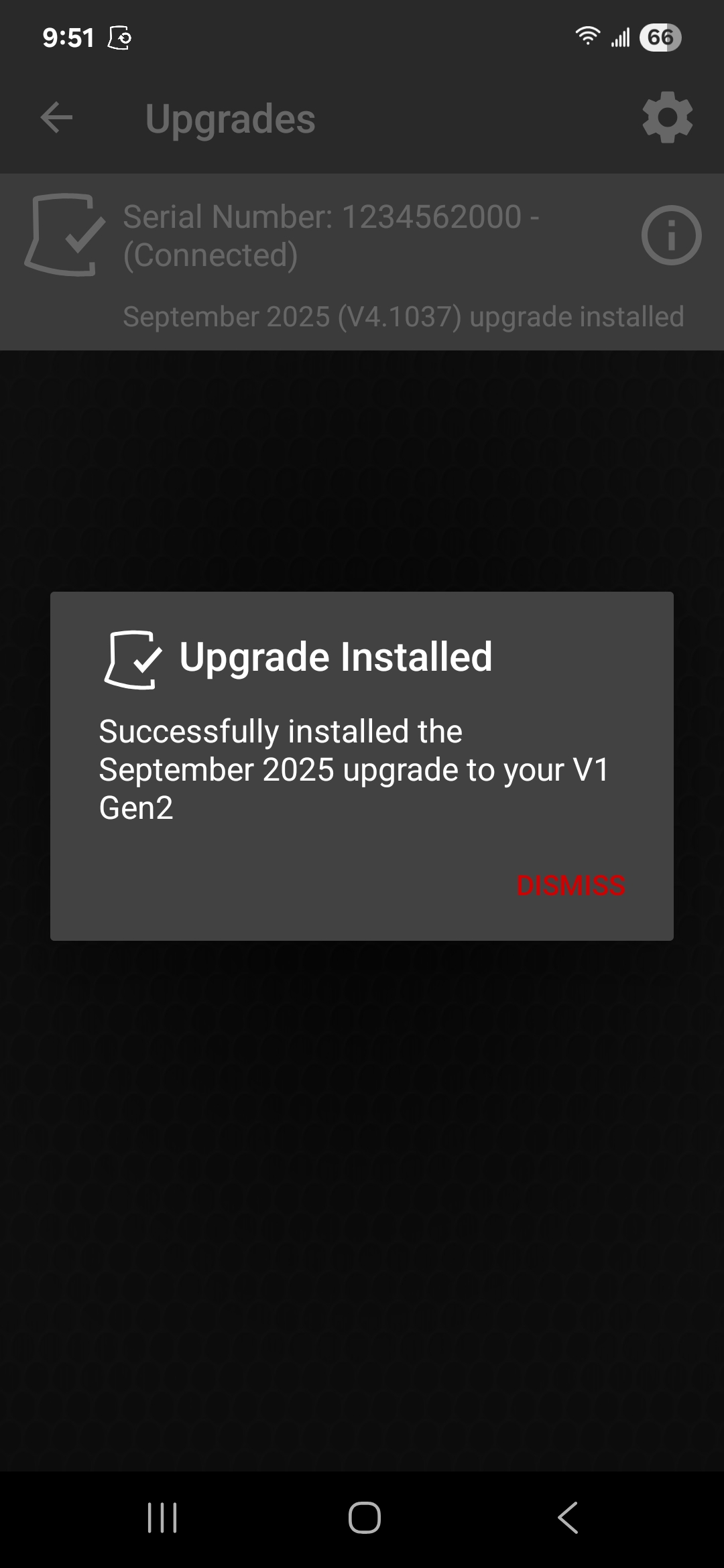
Upgrade Installed dialog.
action: tap DISMISS
Upgrade Installed dialog.
action: tap DISMISS
Upgrades screen
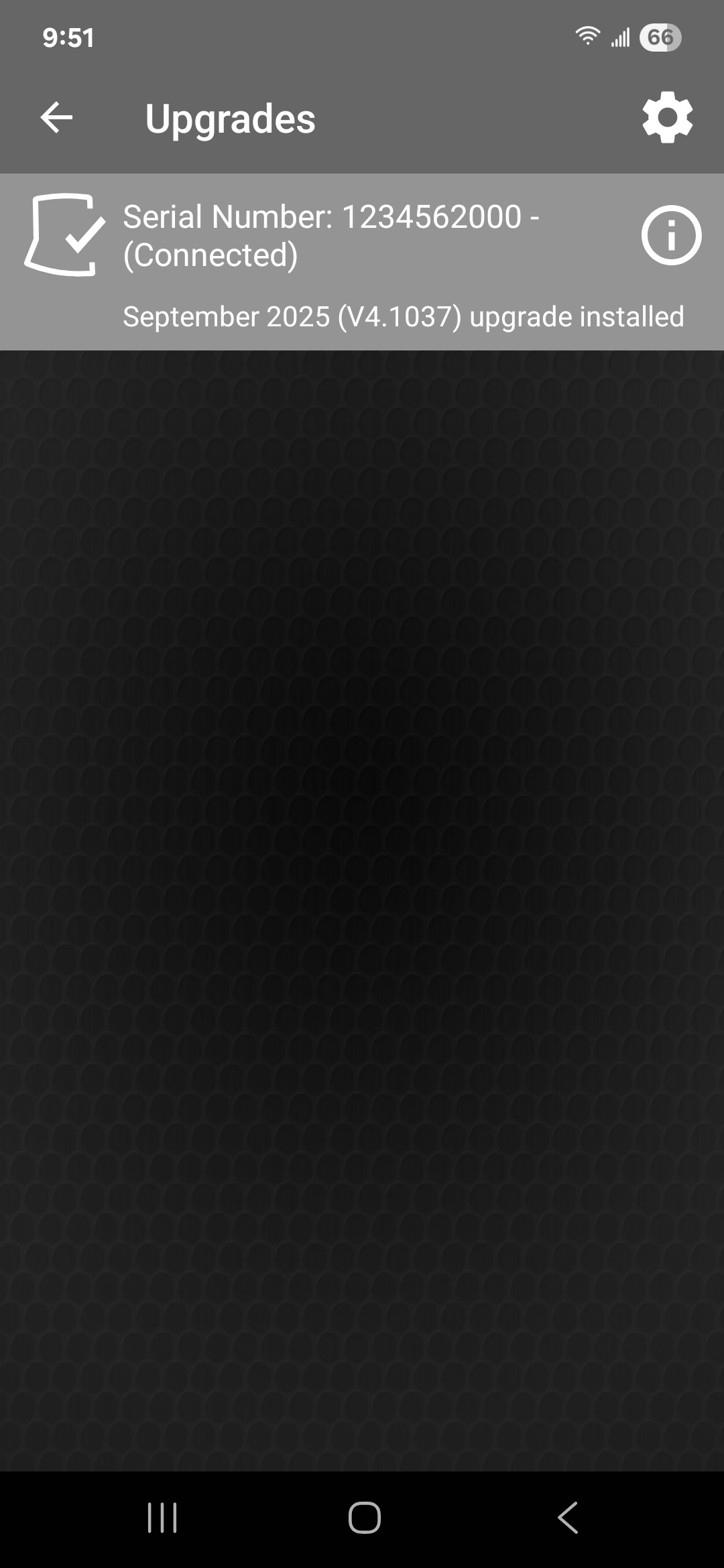
Upgrade Installed.
action: none.
Upgrade Installed.
action: none.