How to Upgrade – Tech Display
Be sure your Tech Display and V1 Gen2™ are both powered on and V1 Gen2 is connected to V1connection, the app.
V1 Main screen
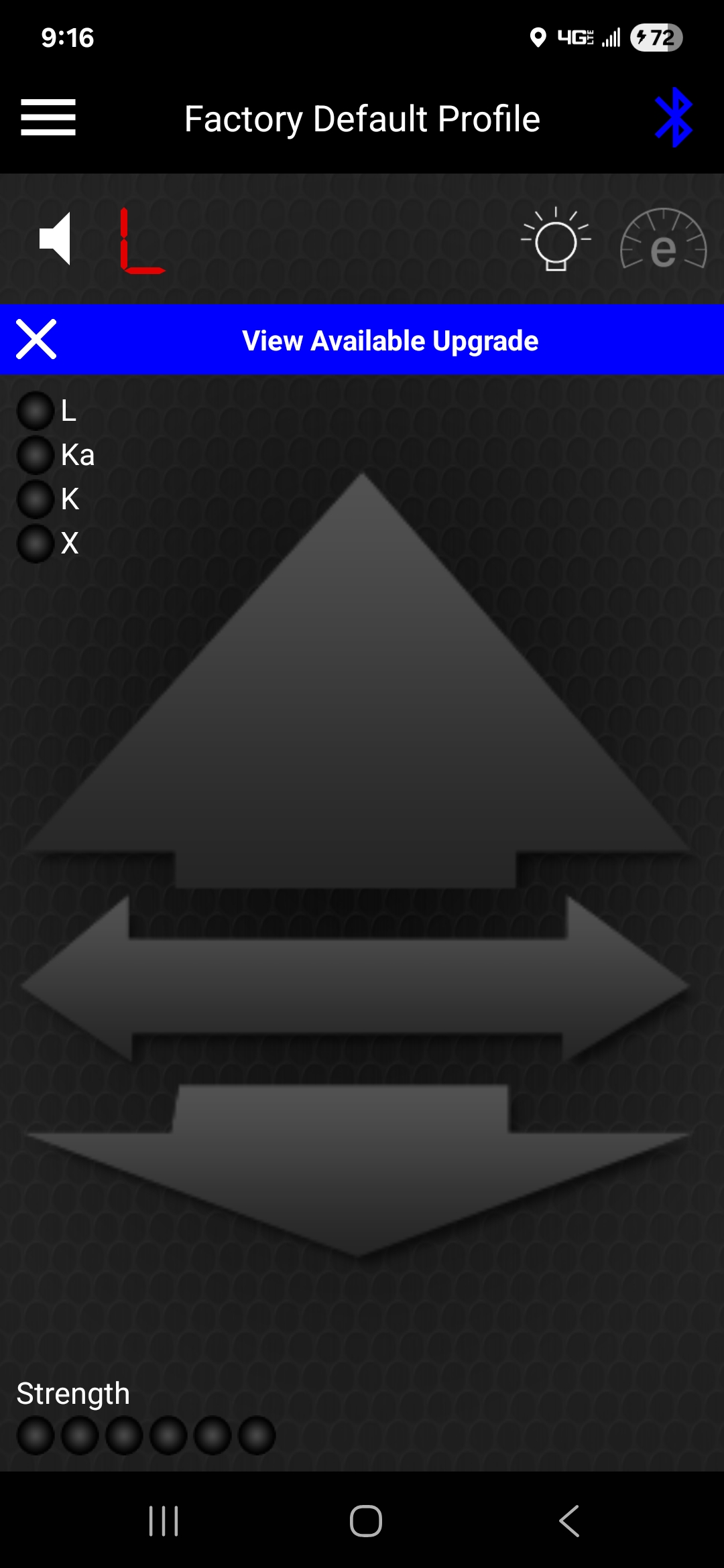
Upgrades Available.
action: tap X to dismiss.
action: tap banner anywhere else for Upgrades screen.
Upgrades Available.
action: tap X to dismiss.
action: tap banner anywhere else for Upgrades screen.
V1 Main screen
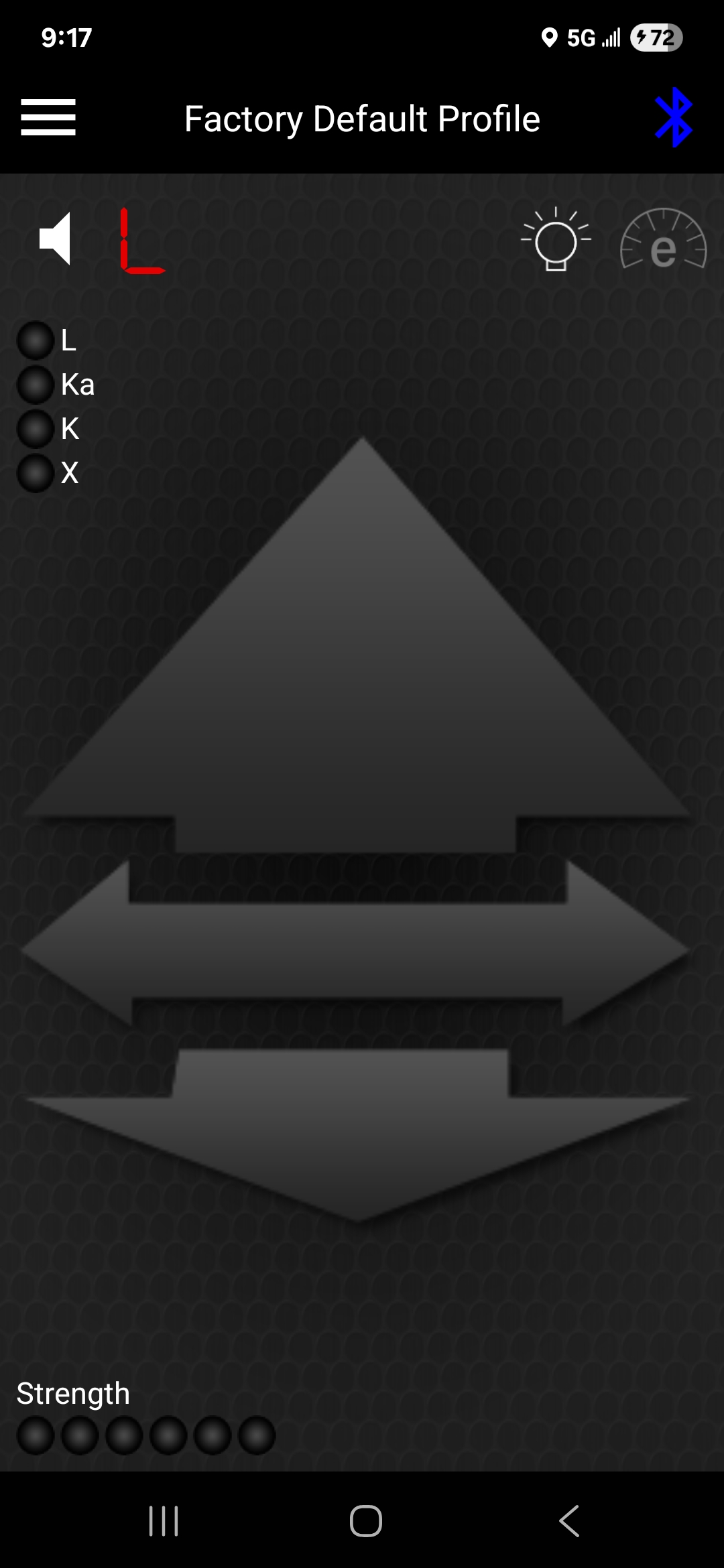
Upgrades Unavailable. If the automatic-upgrade-notice feature has been switched off, you can check manually for Upgrades.
action: tap settings icon
Upgrades Unavailable. If the automatic-upgrade-notice feature has been switched off, you can check manually for Upgrades.
action: tap settings icon
Settings screen
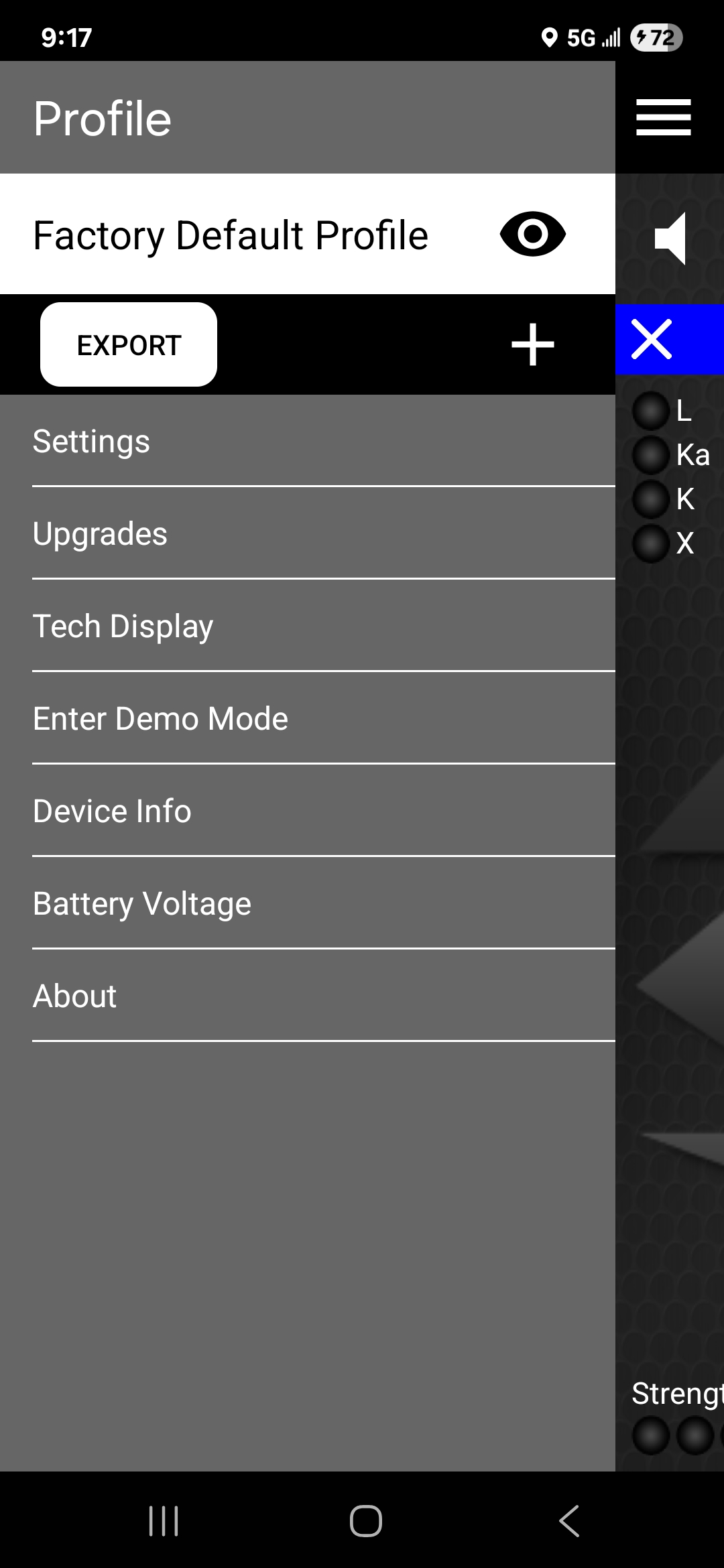
Get available upgrade or manually check for upgrades.
action: tap Upgrades text to open Upgrades screen.
Get available upgrade or manually check for upgrades.
action: tap Upgrades text to open Upgrades screen.
Upgrades screen
Test for Upgrades.
action: tap to check for upgrades.
Test for Upgrades.
action: tap
to check for upgrades.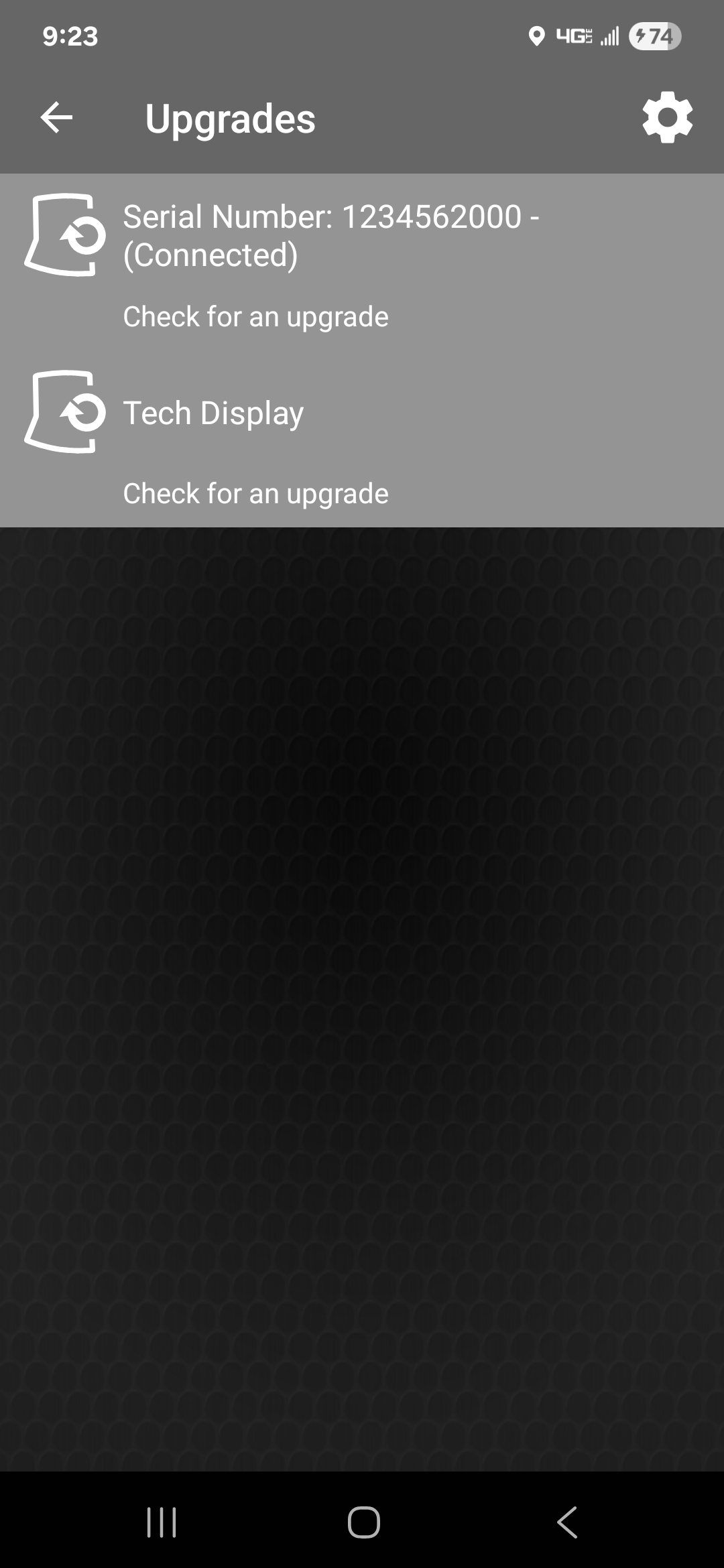
Upgrades screen
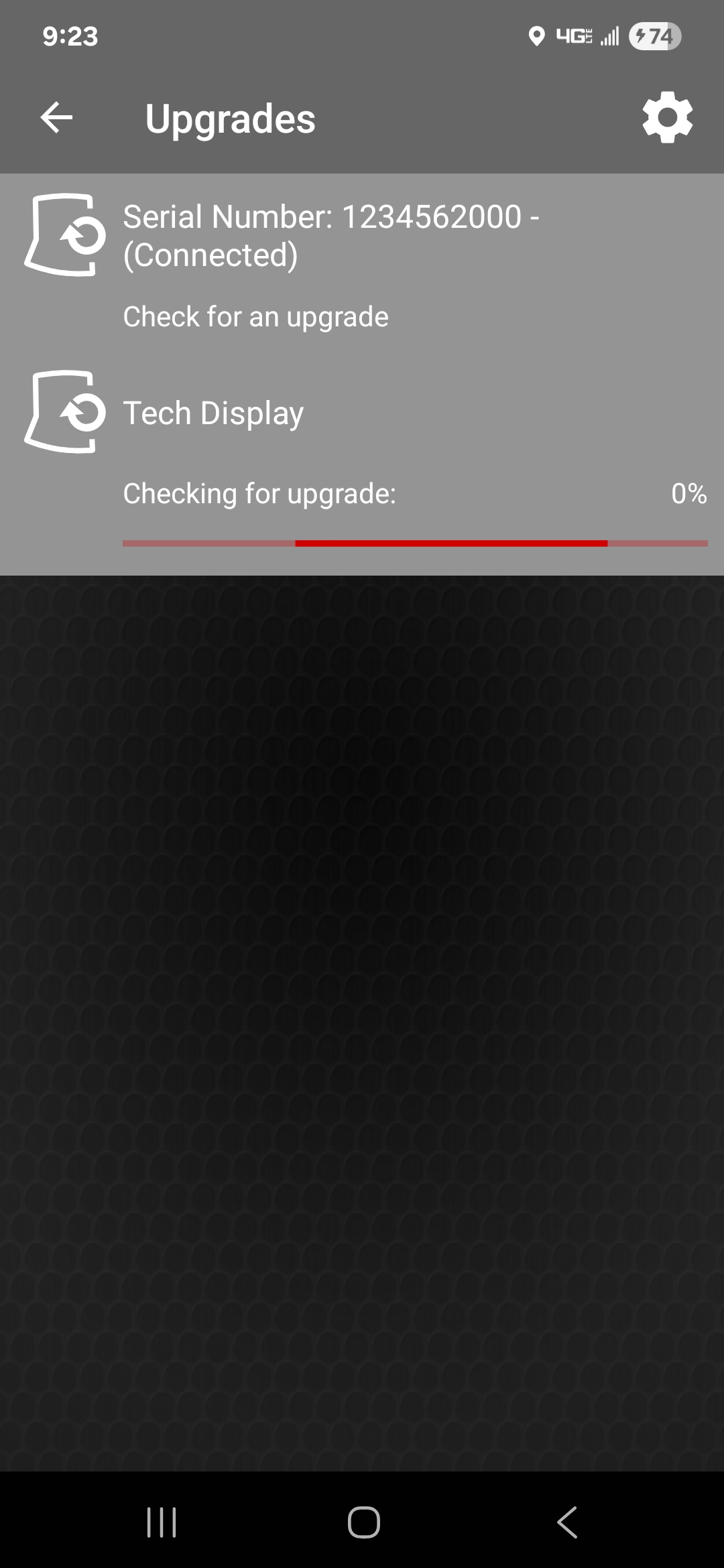
Checking for Upgrades.
action: (wait).
Checking for Upgrades.
action: (wait).
Upgrades screen
Download Upgrade/Get Upgrade info.
action: tap to download upgrade.
action: tap for upgrade information.
Download Upgrade/Get Upgrade info.
action: tap
to download upgrade.action: tap
for upgrade information.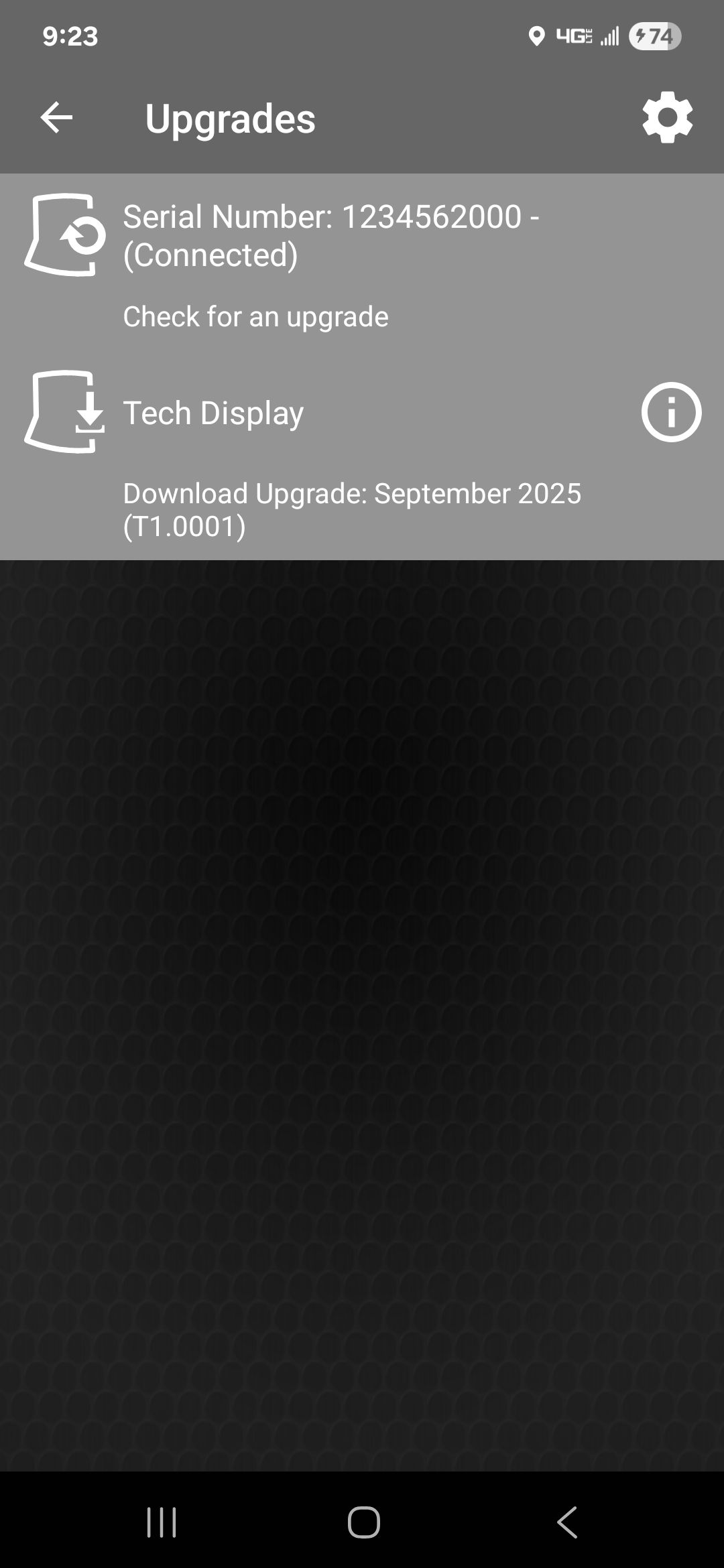
Upgrades screen
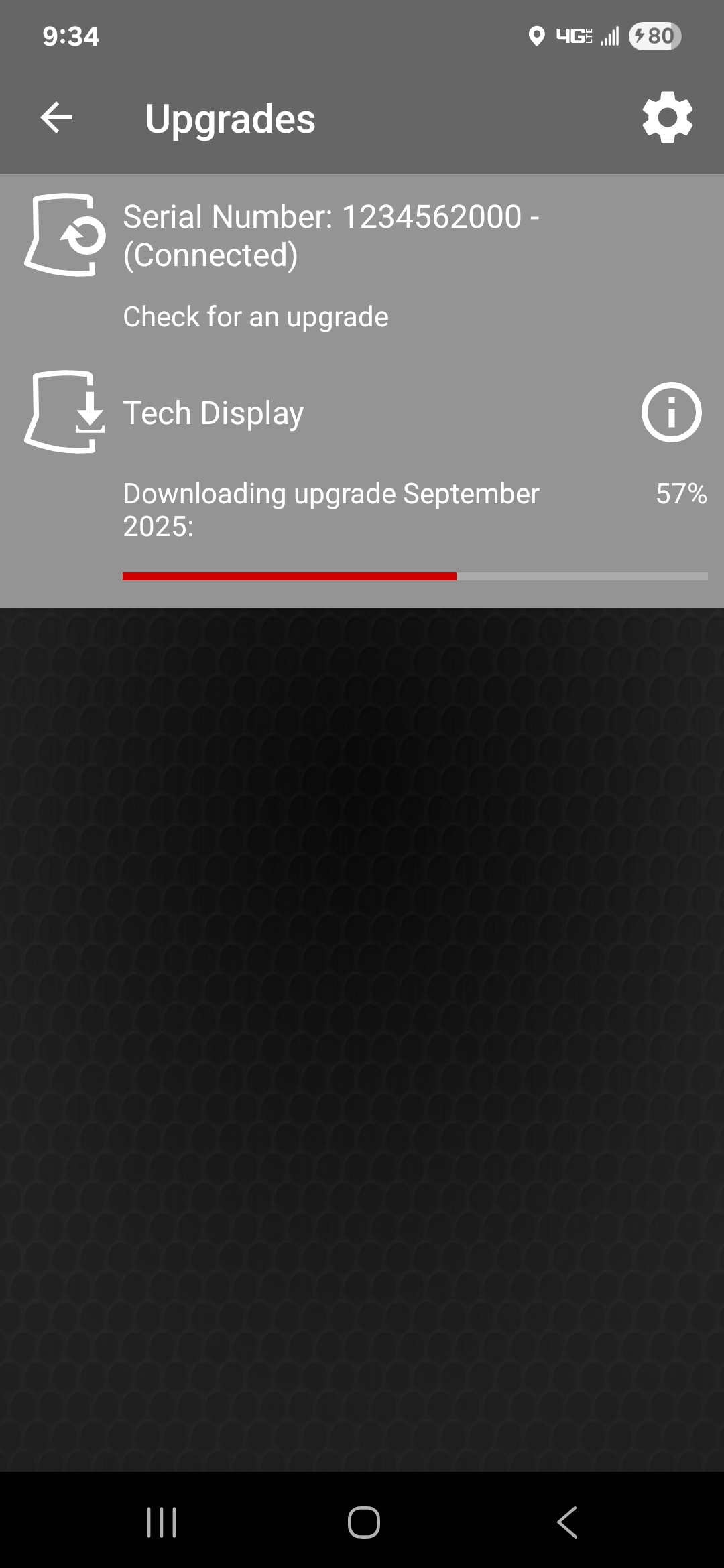
Downloading Upgrade.
action: (wait).
Downloading Upgrade.
action: (wait).
Upgrades screen
Install Upgrades.
action: tap to install upgrade.
action: tap for upgrade information.
Install Upgrades.
action: tap
to install upgrade.action: tap
for upgrade information.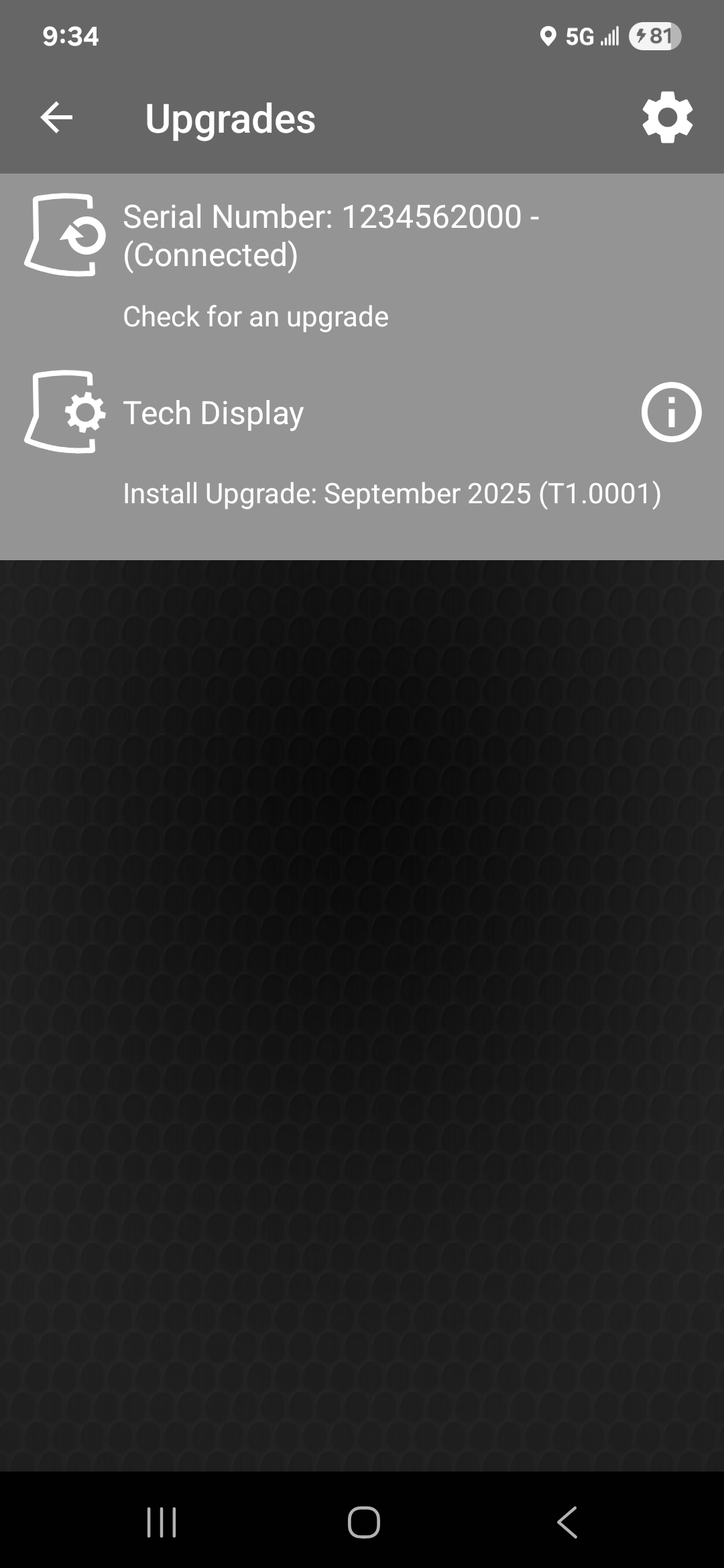
Upgrades screen
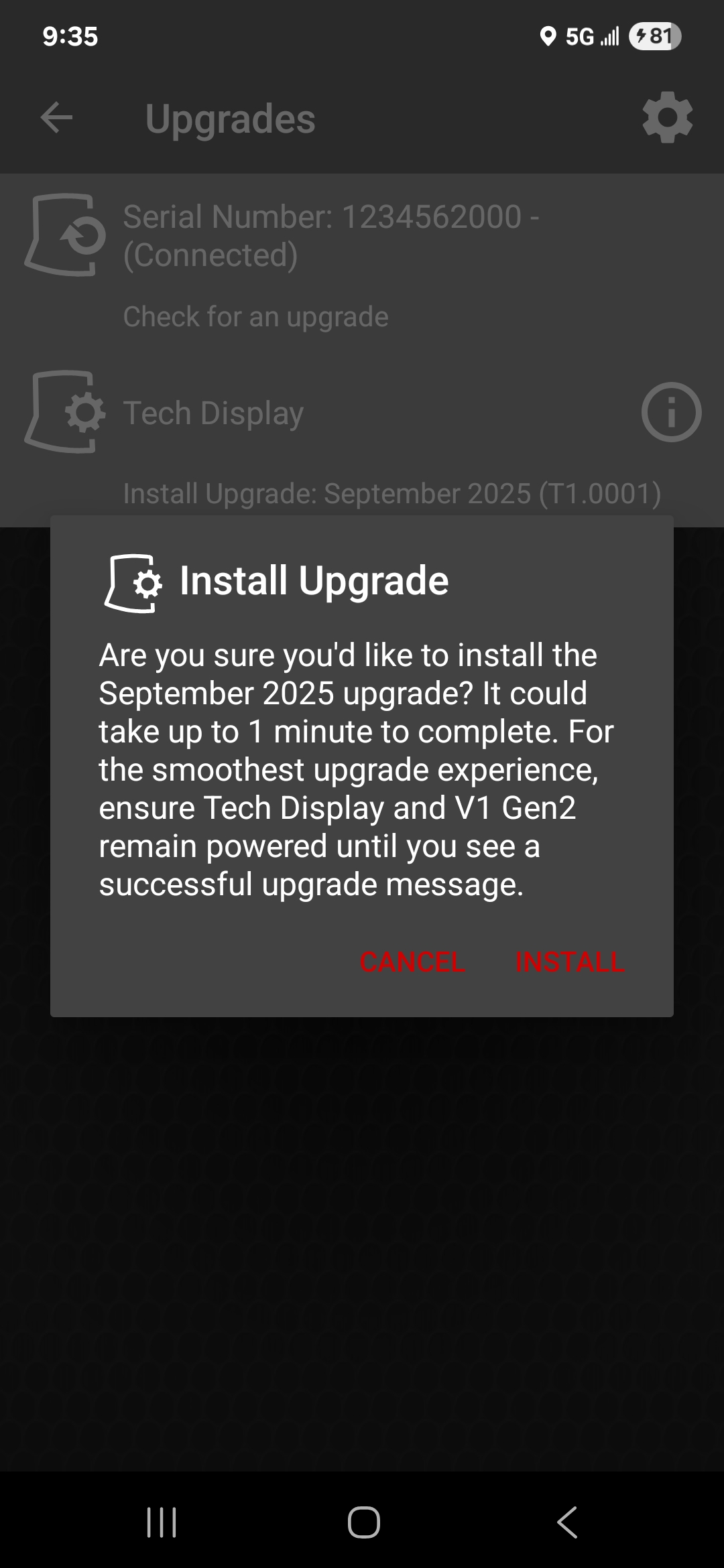
Acknowledge/Cancel Upgrade install.
action: tap CANCEL or INSTALL
Acknowledge/Cancel Upgrade install.
action: tap CANCEL or INSTALL
Upgrades screen
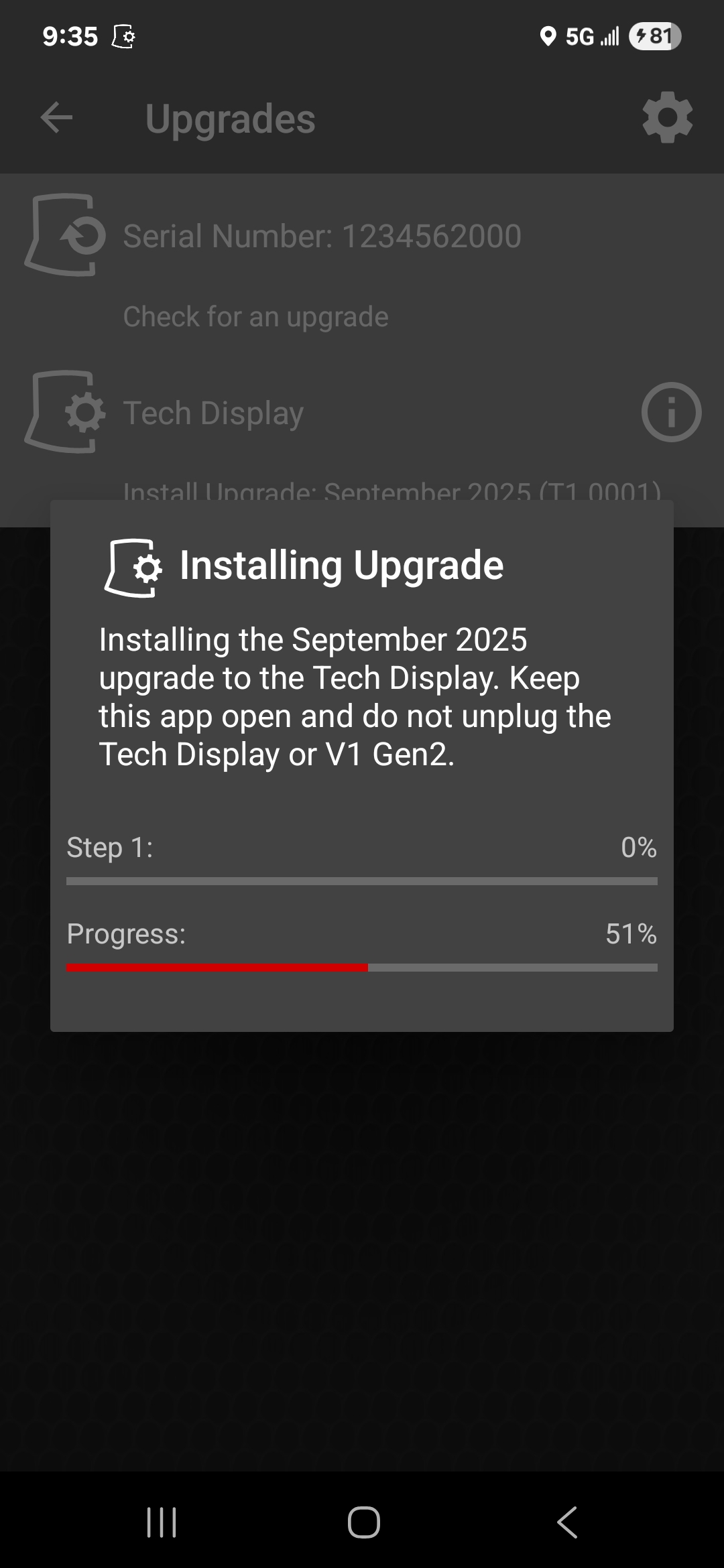
Installing Upgrade Progress.
action: wait.
Installing Upgrade Progress.
action: wait.
Upgrades screen
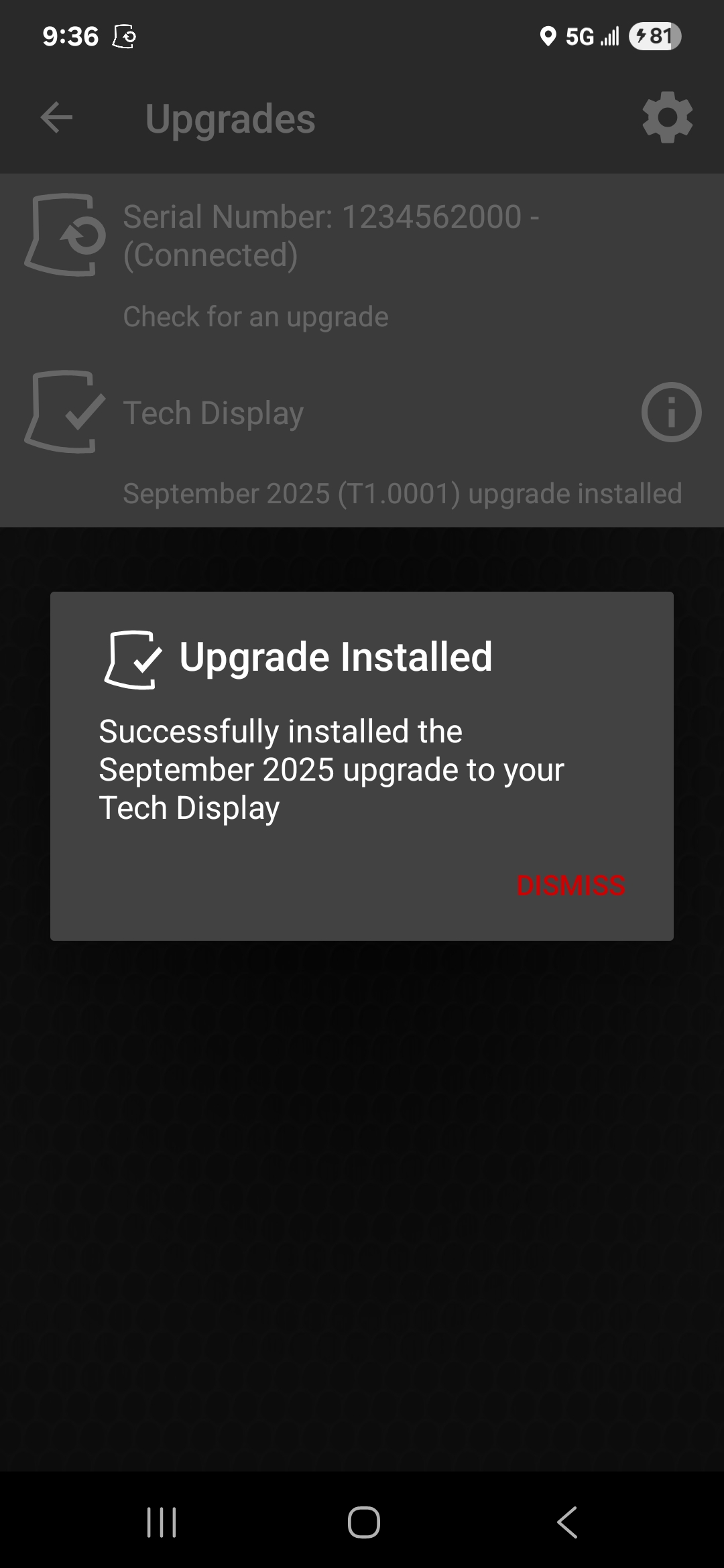
Upgrade Installed dialog.
action: tap DISMISS
Upgrade Installed dialog.
action: tap DISMISS
Upgrades screen
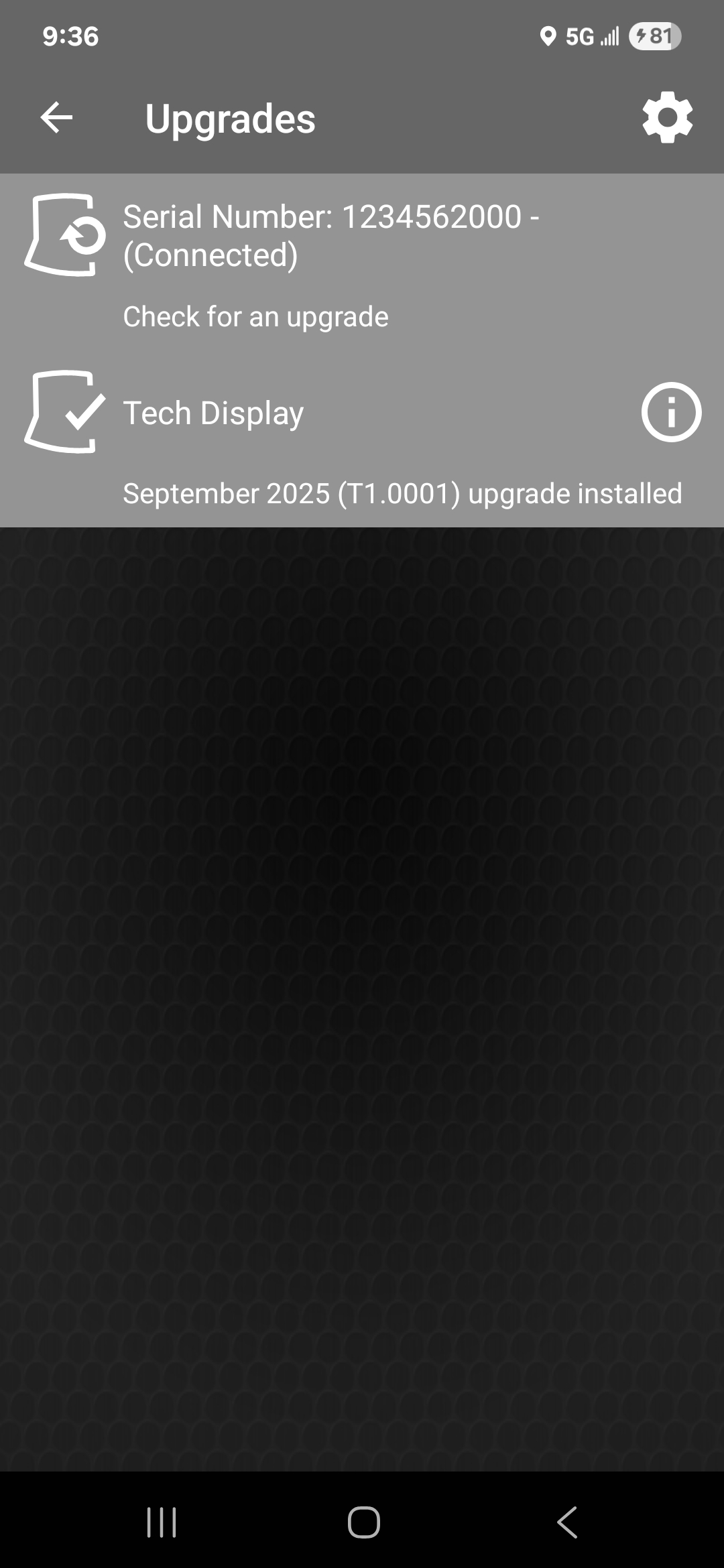
Upgrade Installed.
action: none.
Upgrade Installed.
action: none.